

You charge your phone to 100%, but a few hours later, it’s near 40%. Annoying and hard to rely on it like that. If your iPhone battery draining fast, there’s always a reason, and it’s usually not what people think. Most just switch off random settings and hope it helps, but it doesn’t. The real drain keeps running in the background. Here, you’ll find what’s actually causing it and sort it properly, step by step.
Let’s fix it before it drops again.
QUICK ANSWER
Why your iPhone battery drains fast:
- Background apps running constantly
- Location services tracking activity
- iOS bugs after updates
- Battery health wearing down
Quick fixes:
- Turn on Low Power Mode
- Check Battery Usage
- Cut unnecessary background activity
- Update iOS
Why Is My iPhone Battery Draining So Fast? (Real Causes + Biggest Drainers)
If your battery is dropping faster than usual, something’s behind it. It’s not random. Most of the time, the issue comes down to either software behaviour or battery wear, and knowing the difference saves a lot of time.
Software vs Hardware: What’s Behind the Drain?
Most cases of iPhone battery draining fast are software-related.
Software (fixable):
- iOS update glitches or unfinished background processes
- Apps running excessively in the background
- Settings like location services or sync staying active
Hardware (not fixable with settings):
- Battery health dropping below optimal levels
- Internal wear from charge cycles
- Heat affecting battery performance
If battery health is above 80%, focus on fixes. Below that, the issue is likely hardware.
Real Causes That Actually Drain Battery
This is where most people go wrong. The problem is usually one of these, not everything at once:
- iOS update issues (especially right after installing a new version)
- Rogue apps using battery in the background
- Background activity like iCloud sync or email fetch
- Overheating increasing power usage
- Battery wear reducing how long a charge lasts
If you’ve been thinking why my iPhone battery is draining so fast all of a sudden, it’s usually one of these causes.
Biggest Battery Drainers (Ranked by Impact)
Focus on what actually makes a difference:
High impact:
- Screen brightness
- Location services (GPS)
- Poor signal (constant network search)
- Always-On Display (on supported models)
Medium impact:
- Background App Refresh
- Push notifications & email sync
Low impact (often misunderstood):
- Bluetooth
- Closing apps repeatedly
What This Means for You
Don’t try to fix everything.
Find the one or two real causes that’s where the drain is coming from.
How Do I Check What’s Draining My iPhone Battery? (Do This First)
Before changing any settings, check what’s actually causing the drain. Guessing won’t fix anything. Your iPhone already shows exactly where the battery is going, you just need to read it properly.
Real Causes That Actually Drain Battery
If your battery is dropping faster than usual, something’s behind it. It’s not random. Most of the time, the issue comes down to either software behaviour or battery wear, and knowing the difference saves a lot of time.
Step-by-Step: Check Battery Usage
- Go to Settings
- Tap Battery
- Wait a few seconds for data to load
- Scroll to Battery Usage by App
You’ll see a breakdown of which apps are using the most power over the last 24 hours or 10 days. If your iPhone battery draining fast, this screen is where the real answer is, not in random settings.
What to Look For (This Is Where Most Miss It)
Don’t just look at the top app and assume that’s the problem. Focus on patterns:
- Apps using 30% or more battery
- High usage even when you barely used the app
- Activity showing mostly “Background” instead of “On Screen”
For example, if a social media app shows high background activity, it’s likely refreshing content constantly without you noticing.
Red Flags You Shouldn’t Ignore
These usually point to the real cause behind why my iPhone battery is draining so fast all of a sudden:
- High battery usage with very low screen time
- Apps you don’t recognise or rarely use
- System services quietly consuming power in the background
- Sudden spikes after an iOS update
If you see any of these, don’t ignore the, that’s your actual problem, not your brightness or Bluetooth.
How to Fix iPhone Battery Draining Fast (Step-by-Step Priority Guide)
Once you know the cause, fixing it is straightforward. Start with quick wins, then move to deeper fixes only if needed. That’s the fastest way to fix iPhone battery draining fast without wasting time.
Step 1: Quick Fixes (2 Minutes)
- Turn on Low Power Mode
Settings → Battery - Reduce screen brightness
Use auto-brightness or keep it lower - Turn off unused features
Bluetooth, AirDrop, hotspot
Step 2: Medium Fixes (5–10 Minutes)
- Disable Background App Refresh
Open Settings, then → General → Background App Refresh - Limit location access
Set apps to “While Using” - Adjust notifications & email fetch
Reduce push activity
Step 3: Advanced Fixes (If Needed)
- Reset all settings (no data loss)
Settings → General → Transfer or Reset iPhone → Reset - Update iOS
Fixes known bugs - Remove problematic apps
Especially those with high background usage
Fix vs Effort vs Impact
Fix | Effort | Impact |
Low Power Mode | Easy | High |
Reduce Brightness | Easy | High |
Background App Refresh Off | Easy | Medium–High |
Limit Location Services | Medium | High |
Adjust Notifications | Medium | Medium |
Reset All Settings | High | High |
iOS Update | Medium | Medium–High |
Remove Problematic Apps | Medium | High |
What Matters
Quick fixes help, but real improvement comes from fixing the exact cause, not changing everything blindly.
Why Is My iPhone Battery Draining Overnight (Even When Not Using It)?
If your battery drops 15–30% overnight, that’s not normal. Your iPhone isn’t idle, something is running in the background while the screen is off. This is a common reason behind iPhone battery draining overnight even when not in use.
How to Fix It (Quick, Targeted Fixes)
You don’t need to change everything, just limit what runs overnight:
- Switch email from Push to Fetch/manual
Settings → Mail → Accounts → Fetch New Data - Turn off unnecessary background activity
Keep only essential apps active - Set location access to “While Using”
Prevents constant tracking when the phone is idle
Before sleeping, note your battery %.
If it drops more than 10–15% overnight, something is still running and needs to be restricted.
Does iOS Update Cause Battery Drain? (Important)
Yes, but not in the way most people think. Right after an update, it’s normal to notice battery drain after iOS update. Your iPhone is re-indexing files, syncing data, and finishing background processes. That can make it feel like your battery is dropping faster than usual.
What’s Actually Normal
For the first 24–72 hours after installing a new version (like iOS 17 or 18):
- Background tasks are still running
- Photos, apps, and data are being reprocessed
- Battery usage may look higher than usual
This is temporary. In most cases, things settle on their own.
When It’s NOT Normal
If the drain continues beyond 2–3 days, then it’s not just post-update activity.
Signs to watch:
- Battery dropping unusually fast even on low usage
- Phone getting warm without heavy use
- Same apps showing high background activity repeatedly
At that point, you’re likely dealing with a software issue, not just normal update behaviour.
How to Fix It Properly
Don’t rush into resets straight away. Follow this order:
- Wait at least 48–72 hours
Let background processes finish. Many issues resolve on their own. - Check battery usage again
See if a specific app is causing the drain. - Reset all settings (if needed)
Head into Settings → General → Transfer or Reset iPhone → Reset → Reset All Settings
This clears system-level glitches without deleting your data.
Quick Insight
Most people assume every update “ruins battery life”. That’s not accurate.
If your iPhone battery draining fast after update iOS 17/18 fix is still needed after a few days, it usually comes down to one of two things:
- A misbehaving app
- A settings conflict after the update
Not the update itself.
Does 5G, Screen, or Apps Drain Battery the Most? (Comparison)
Not all battery drain comes from the same place. If your iPhone battery draining fast, it usually comes down to one of these three, but they don’t affect your battery equally.
Battery Drain Comparison
Factor | Battery Impact |
Screen (Brightness / Usage) | High |
5G / Poor Signal | High |
Apps (Background Activity) | Medium–High |
Idle Drain (Background Sync) | Medium |
5G vs Wi-Fi
5G can drain more battery, but only in weak signal areas. When the network is unstable, your iPhone keeps searching for a better connection, which increases power usage. On stable Wi-Fi, battery usage is usually lower and more consistent.
Screen vs Apps
The screen is still the biggest drain. High brightness and long screen time will always use more battery than most apps.
Apps become a problem when they run in the background, especially social, navigation, or syncing apps. That’s where how to check what is draining battery on iPhone actually matters.
Idle Drain (When You’re Not Using It)
If your battery drops without usage, it’s not the screen; it’s background processes. Sync, location, or a misbehaving app is usually behind it.
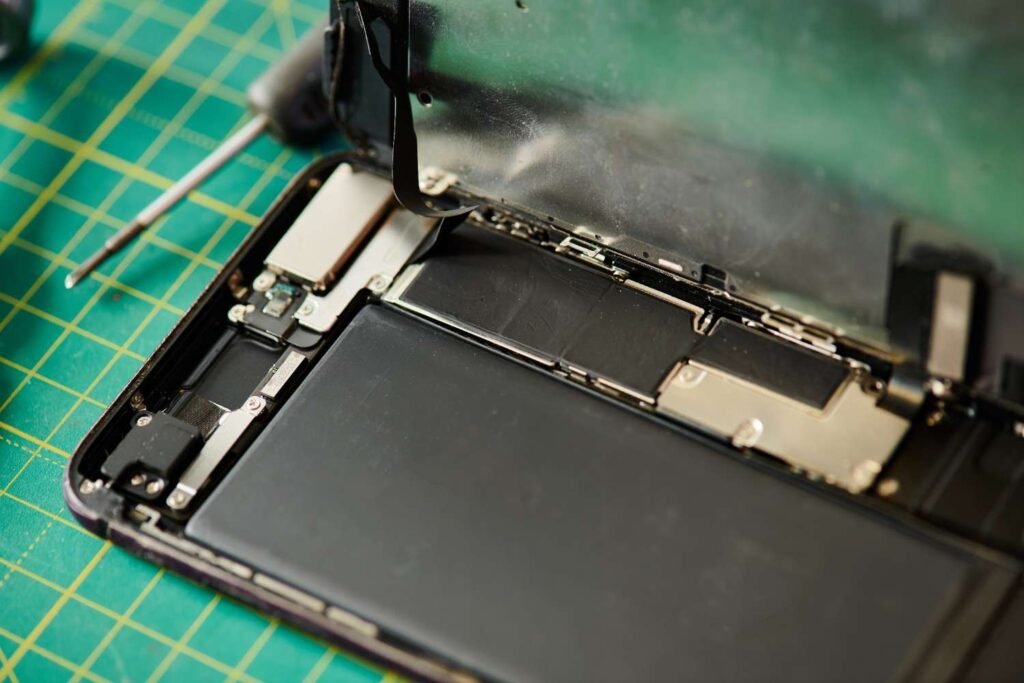
Is My Battery Damaged or Just Draining? (Decision Point)
At that point, you need clarity. Is it a settings issue, or is the battery actually worn out? If your iPhone battery draining fast even on low usage, that’s usually where it starts, you decide what to do next.
Check Battery Health First
Go to Settings → Battery → Battery Health & Charging
- 85% or above → Battery is in good condition
- 80–84% → Slight wear, performance may drop
- Below 80% → Battery is degraded and likely causing the issue
This “Maximum Capacity” tells you how much charge your battery can still hold compared to when it was new.
Signs It’s a Hardware Problem (Not Fixable by Settings)
If you notice these, it’s not just a settings issue:
- Sudden drops (e.g. 30% to 1% without warning)
- Device heating during normal use
- Fast drain even when idle
- Battery percentage behaving inconsistently
These are strong signs of battery wear or hardware-related battery drain, not just background activity or apps.
Should I Replace My iPhone Battery or Fix Settings?
This is where you stop guessing and make a decision. If your iPhone battery drain fix isn’t working after basic changes, the question is simple: is it a software issue, or is the battery worn out?
Signs It’s a Hardware Problem (Not Fixable by Settings)
Go this route if the problem is still software-related:
- Battery health is above 80–85%
- Drain started after an update or app install
- Battery usage shows specific apps causing the issue
In these cases, the problem is usually background activity, settings, or a misbehaving app, all fixable without spending anything.
When You Should Replace the Battery
At some point, no setting will help.
Replace your battery if:
- Battery health is below 80%
- You notice fast drain even on standby
- Sudden percentage drops (e.g. 30% → 1%)
- Device heats up during normal use
- High charge cycle count (battery worn out over time)
This isn’t a “maybe” situation, it’s a clear hardware limitation.
Cost Comparison: What Are Your Options?
Option | Average Cost | Pros | Cons |
Apple Store | High | Original parts, reliable | Expensive |
Authorized Service | Medium–High | Certified repair | Slightly limited access |
Third-Party Repair Shop | Medium | Faster, more affordable | Quality varies |
DIY Replacement | Low | Cheapest option | Risk of damage |
Final Reality Check
If your battery is healthy → fix the cause.
If your battery is degraded → replace it.
Trying to “optimise” a worn-out battery is a waste of time. It might improve slightly, but it won’t solve the core issue.
5 iPhone Battery Myths You Should Stop Believing
A lot of advice around iPhone battery draining fast is outdated or just wrong. These myths waste time, and sometimes make things worse.
Closing apps saves battery
It doesn’t. Force-closing apps makes your iPhone reload them from scratch, which can use more power. Let iOS manage apps in the background.
Charging overnight damages battery
Modern iPhones use Optimised Battery Charging. Once it hits 100%, charging slows down to protect the battery. Overnight charging isn’t the problem, heat is.
Dark mode always saves battery
Only helps on OLED screens (iPhone X and later), and even then, the impact is small unless you use it consistently.
Cheap chargers are fine
Low-quality chargers can cause unstable power delivery, heating, and long-term battery wear. This is often ignored in battery health issues.
Factory reset always fixes battery drain
It doesn’t. If the issue is hardware or a specific app, resetting everything won’t solve it; it just wastes time.
Reality Check
If you’ve been relying on these, that’s likely why the problem hasn’t improved. Focus on real causes, not recycled tips.
Real Case Study: What Actually Fixed the Problem
This is a typical scenario behind iPhone battery draining fast, even on low usage and how it was solved without replacing the battery.
Problem
An iPhone 13 was dropping from 100% to around 60% by midday with normal use. Overnight drain was also noticeable.
Diagnosis
Battery health was still at 88%, so not a hardware issue.
Battery usage showed:
- High background activity from a social media app
- Continuous location tracking enabled
Fix Applied
- Set location access to “While Using”
- Disabled background app refresh for that app
- Reduced unnecessary push notifications
No reset. No replacement.
Result (After 5–7 Days)
- Battery lasted a full day again
- Overnight drain reduced to normal (5–8%)
- No heating or sudden drops
Key Insight
Most battery problems aren’t complex. One app or one setting is usually responsible. The difference is identifying it properly instead of guessing.
How to Prevent iPhone Battery Drain in the Future
Fixing the issue once isn’t enough. If you don’t change how you use your phone, the same problem comes back. Preventing iPhone battery draining fast is mostly about control what runs, when it runs, and how you charge.
Smart Charging Habits
- Keep battery between 20% and 80% when possible
- Avoid constant full drains to 0%
- Use original or certified chargers to prevent heat damage
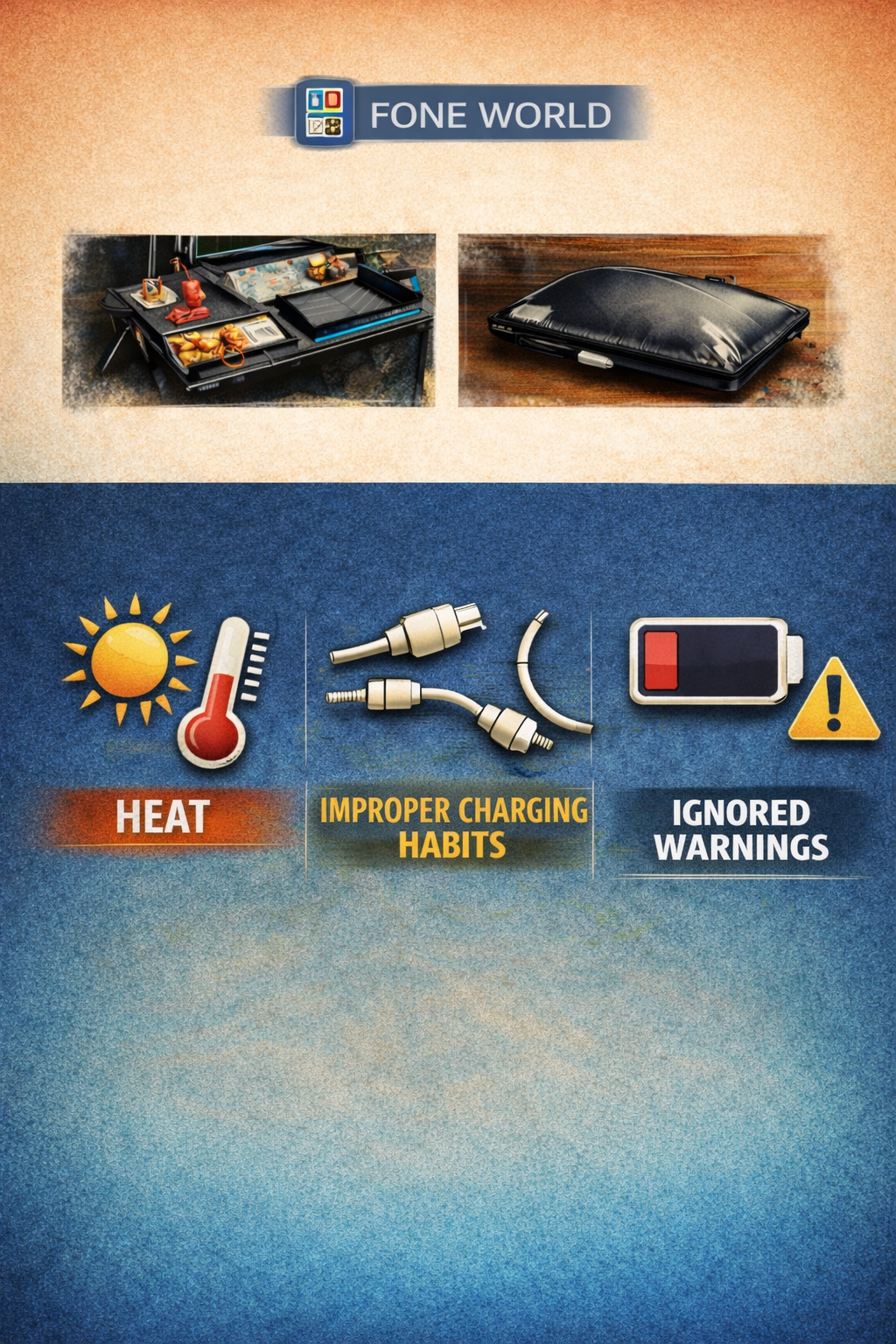
- Don’t keep your phone plugged in unnecessarily in hot conditions
Battery wear comes from cycles and heat, not normal daily charging.
Update Discipline (Don’t Blindly Update or Ignore)
- Always update to stable iOS versions, as many fixes improve battery performance
- After updating, give it 1–2 days to stabilise before judging battery life
- If a version causes issues, avoid jumping into multiple updates without checking
This helps avoid battery drain after iOS update problems repeating.
App Control (This Matters Most Long-Term)
- Regularly check battery usage in settings
- Remove apps you don’t use
- Limit background activity for social, shopping, and tracking apps
- Keep location access on “While Using”, not “Always”
Most long-term battery issues come from apps, not the device itself.
Simple Rule to Follow
If something runs in the background, it drains battery. If you control it, your battery lasts.
Conclusion: What Actually Matters
If your battery is draining faster than it should, don’t guess, diagnose first. Check what’s using power, not what you think might be. Most issues come from a few high-impact causes like background activity, location services, or a misbehaving app. Fix those first before touching anything else. If the problem continues and your battery health is low, then it’s not a settings issue anymore. It’s wear, and that’s normal over time.
If nothing works, it’s hardware, not settings.
Frequently Asked Questions
Why is my iPhone battery draining so fast all of a sudden?
Usually, something changed, an update, an app, or a setting. Most cases come down to why is my iPhone battery draining so fast all of a sudden being linked to background activity, iOS bugs, or location services running constantly. Check Battery Usage first. That’s where the real cause shows up.
Does closing apps on iPhone help battery?
No. Force-closing apps doesn’t save battery. iOS manages apps efficiently in the background. Reopening them uses more power. The real issue is apps running background activity — not apps sitting idle.
Is overnight battery drain normal?
A small drop (5–10%) is normal. But if you’re seeing iPhone battery draining overnight even when not in use, then background sync (like iCloud or Mail) or a rogue app is likely running all night.
Does 5G drain battery faster than Wi-Fi?
Yes, but mostly in weak signal areas. When signal is unstable, your phone keeps searching, which increases power use. On stable Wi-Fi, battery drain is usually lower and more consistent.
When should I replace my iPhone battery?
If battery health drops below 80%, or you notice fast drain even on standby, it’s time. At that point, no setting will fully fix it; it’s normal lithium-ion battery wear.
Why does my iPhone battery drop suddenly from 30% to 1%?
That’s a clear sign of battery degradation. The battery can’t hold charge properly anymore. It’s not a settings issue, it’s a hardware limitation.
Can overheating cause battery drain?
Yes. Heat increases power consumption and speeds up battery wear. If your phone gets warm during light use, it can lead to battery draining fast even on low usage.
Does dark mode really save battery?
Only on OLED screens (iPhone X and newer). Even then, the impact is small. It helps slightly — but won’t fix major battery drain.
What drains iPhone battery the most?
The biggest factors are:
- Screen brightness
- Location services (GPS)
- Poor network signal
- Background apps
Not small things like Bluetooth.
Can apps drain battery in the background?
Yes, this is one of the main causes. Social, navigation, and syncing apps can run silently. If you’re wondering how to check what is draining battery on iPhone, go to Settings → Battery and look for high background activity.
Why is my iPhone battery draining while charging?
This usually means something heavy is running, like gaming, video, or background syncing. In some cases, faulty cables or overheating can also cause iPhone battery draining while charging.
Is Low Power Mode safe to use all the time?
Yes. It reduces background activity and performance slightly, but it doesn’t damage the battery. It’s one of the easiest ways to control drain when needed.